Nubart SYNC — Platform Setup
Before You Begin
These steps happen on the Nubart SYNC platform and are exactly the same no matter how you'll play your videos — BrightSign, another media player, or a browser-based system. Complete this page first.
Publishing to BrightSign? Turn to page 2 once you've completed the steps below. Using something else? See the note at the end of this page.
1. Log In
- Open the Admin invitation link we sent you and save your login details for future reference.
- From then on, log in anytime at www.nub.art/customer/login.
Your Stats tab shows usage statistics and visitor feedback once your videos are live.
2. Invite a Technician (optional)
If someone other than you — an AV integrator or IT technician — will handle the integration, invite them from the Employees tab and give them the "Video controller" permission.
3. Upload Videos to Assets
Go to Assets and upload your videos one by one.
4. Create the Video Instances
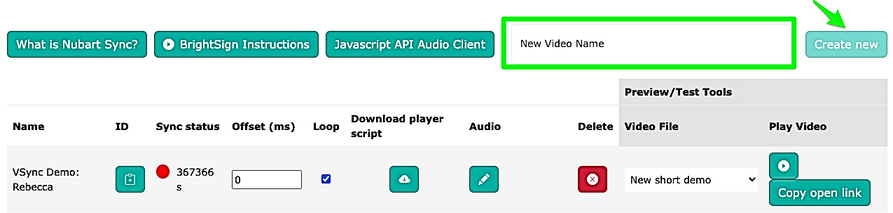
Go to the Video Sync tab, type a name under New Video Name, and click Create new. Then open the Video File dropdown and select the file you just uploaded.
One Instance, or Two?
- Same video, several languages of synced audio: create one video instance — the languages live inside it.
- Same video shown in two different locations: create two video instances, one per location.
Repeat step 4 for every video you need to sync.
5. Link the Sound Tracks
Before continuing, decide how the synced tracks should reach your audience.
Option A — One QR for Everything
A single QR code opens a multimedia audio guide that can combine synced tracks with other pre-recorded audio, images, or PDFs.
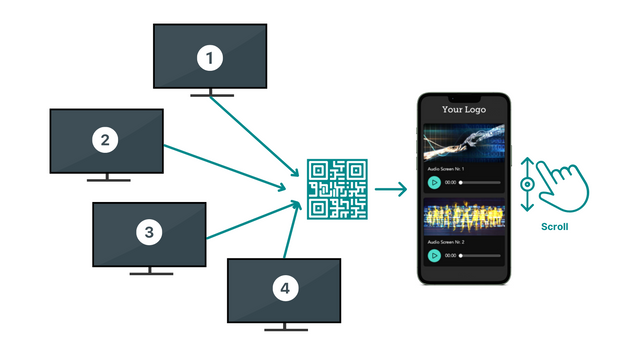
Upload all the material to Assets, and your Nubart project manager takes care of the rest.
Option B — One QR per Screen
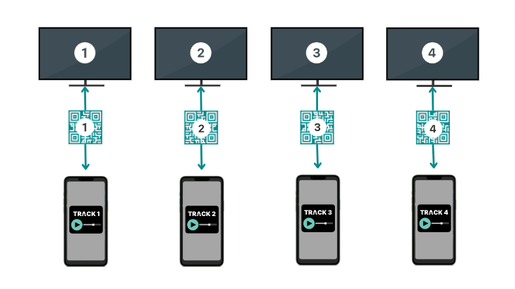
Each screen gets its own QR code, linked only to that screen's soundtrack(s). You can set this up yourself:
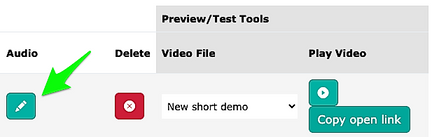
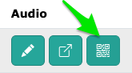
- Click the Audio icon on the video instance.
- Upload the track, give it a title, and assign its language. Add further language tracks if needed.
- Download the QR code.
Option B, cont'd
Option C — Hybrid
Combine both: a multimedia audio guide plus a QR code next to each screen. Ask us and we'll guide you through it.
6. Set Looping

Uncheck Loop if the video should stop after playing once instead of repeating. Do this before downloading the player script, in the next step.
If your video loop starts again with a delay, enter a value in 'Loop Delay (ms)' to specify how long the audio should wait before looping again. After changing the value, you have to reload the audio guide to see/hear the effect.
7. Download the Player Script

Click the download icon to get videoplayer.html. It pairs your local video file with Nubart SYNC and carries a unique token for this video instance — you'll need it for publishing.
Not using BrightSign?
Nubart SYNC works with any modern Chromium-based player — ask your system's support team how to publish an HTML file on it. If your player can't load a full browser page but does support JavaScript, or for mappings, micro-mappings, and projections, our Video Sync Integration Reference documents how your AV integrator can connect directly to the sync endpoint. Either way, write to info@nubart.eu and we'll help.
If you are using BrightSign, continue to page 2.
Publish to a BrightSign Player
Before You Start
On the Video Sync tab of our platform, the BrightSign Instructions button opens a short walkthrough video. Worth watching before you start.
1. Prepare Your Files
You need exactly two files, placed together in one folder that contains nothing else:
- Your video, renamed to
video.mp4 - The
videoplayer.htmlfile you downloaded on page 1
video.mp4 and videoplayer.html — but the folder itself can be named however helps you stay organized.
2. Open BrightSign Author
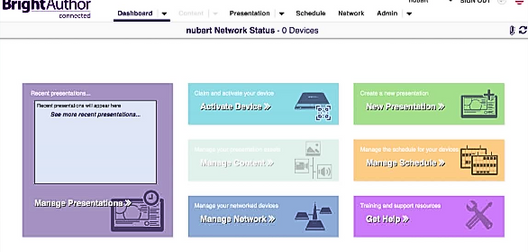
Log in to BrightSign Author (BrightAuthor:connected) and select New Presentation from the dashboard.
3. Set Up the HTML Zone
Choose template Single Zone → HTML, give the presentation a name, and select Local Content for the HTML Site.
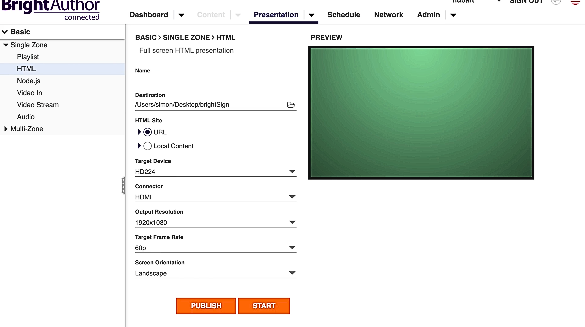
Set Target Device, Connector, Output Resolution, Target Frame Rate, and Screen Orientation to match your display, then click Start.
4. Add Your Files
Back in BrightSign Author, a file browser opens — select the videoplayer.html file from the folder you prepared in step 1. Before continuing, confirm both files appear in the Contents tab.
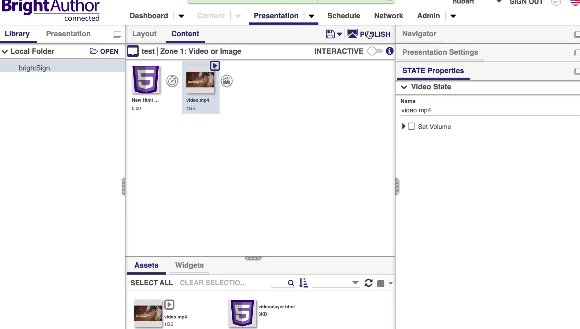
Select the video and click Publish (top right).
5. Select the Device & Publish
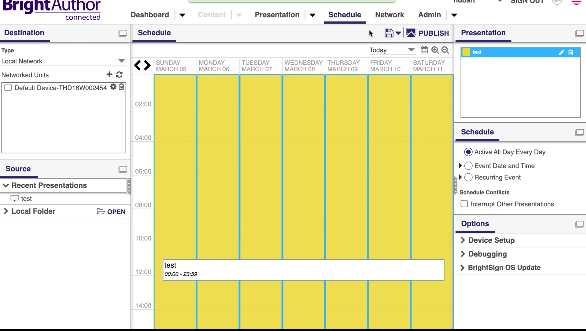
Choose the target device from your network list and click Publish again.
Your Player
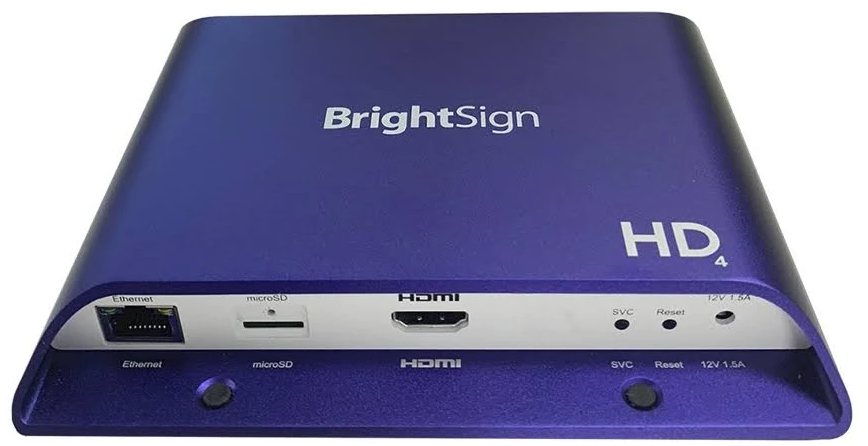
Any internet-connected BrightSign player works — for example an HD224 or similar model. BrightAuthor:connected only needs to be open when you're publishing; day-to-day, the player itself just needs to stay online.
Need Help?
Write to info@nubart.eu any time — before, during, or after your setup.
Final Checks & Reference
Sync Status
Once your video is playing, the traffic light in the Sync status column shows how many seconds have passed since the player last checked in with Nubart's backend. Refresh the page to update it.
🟢 Green — checking in normally, everything is working.
🔴 Red — no recent check-in.
Confirming the Signal Is Live
To actively confirm Nubart SYNC is receiving your signal, test with two devices at once:
- On a laptop or tablet, open the Video Sync tab and watch that video's Sync status.
- While the video is running, the status should stay green when the page is refreshed.
Offset
If the audio lags behind or runs ahead of the video slightly — most noticeable when someone on screen is speaking — adjust the Offset (ms) field for that video instance.
- Stand in front of the screen with a phone playing the synced audio; keep a tablet or laptop open on the Nubart platform.
- Enter an offset value for that video (positive or negative, in milliseconds).
- Refresh the phone and play the audio again. Repeat until the timing feels right.
This latency comes from the display and cabling chain at each site, so it's stable once set — but it's unique to each installation and screen.
Audio Drifts or Jumps on iPhone Only
If synced audio jumps or drifts specifically on iPhones (Safari), while the same track plays fine on Android, the soundtrack's encoding is almost always the cause. It needs to be constant bitrate (CBR), 44.1 kHz, MPEG Version 1, Layer 3 — variable bitrate (a common default in tools like Audacity) is the usual culprit.
Small Timing Differences Between Phones
If you test with several phones side by side, don't be surprised if they're not perfectly aligned with each other — each phone's hardware, OS, and network connection behave slightly differently. This typically stays under 0.3 seconds, often less on Android.
How It All Fits Together
One-time setup
(publishes once)
on the BrightSign player
Every day, on site
(video plays here, always silent)
(sync signal)
(sound plays here)
Distorted sound at the beginning of the track
For optimal user experience, the video and audio should have at least 1-2 seconds of silence at the beginning.