Speaker & Listener Interfaces
Speaker Instructions
Before Starting (Day of Event)
Restart your speaker device for optimal performance.
1. Logging In
- Go to www.nub.art/customer/login
- Click "Nubart TRANSLATE"
- If multiple rooms: Select your room
2. Select Spoken Language
Select the language you will speak during presentation.
3. Starting Translation
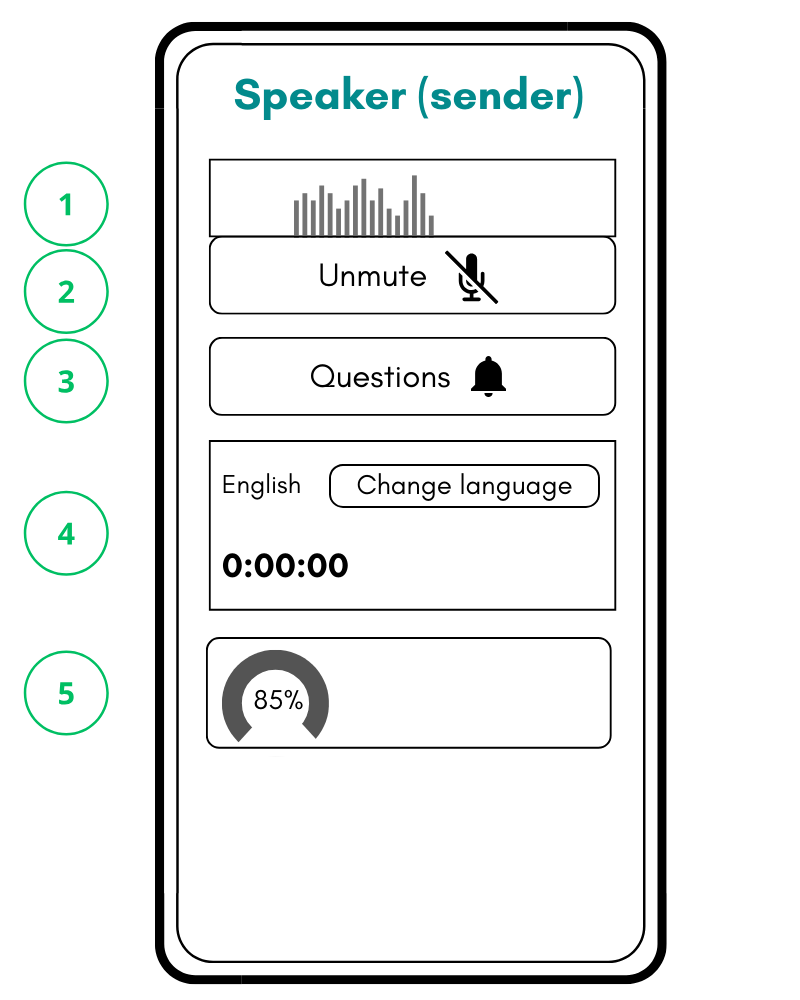
- Click "Unmute" (2)
- Translation timer starts (appears in red)
- Start speaking naturally—do NOT insert artificial pauses
4. Monitor Audio Quality While Speaking
As you speak, verify these indicators:
- Spectrum meter (1) shows visible movement when you talk
- Audio Quality Indicator shows green (80%+)
- No red bars in spectrum meter (1) (indicates distortion)
If any indicator is problematic:
- Click "Mute" to pause translation
- Fix the audio issue (adjust volume, change mic, reduce noise)
- Click "Unmute" (2) again and verify indicators are now good
5. Pausing Translation
- Click "Mute" (2)
- Timer stops and turns black
- System stops listening (stops billing)
6. Audience Questions (if enabled)
When listener submits question:
- Red notification on "Questions" (3)
- Click button to open question list
- Questions automatically translated into your language
- Recommended: Delete after answering
Speaker Interface
Listener Interface
Listener Instructions
1. Joining the Translation
- Scan the event QR code with smartphone
- If multiple rooms: Select your room
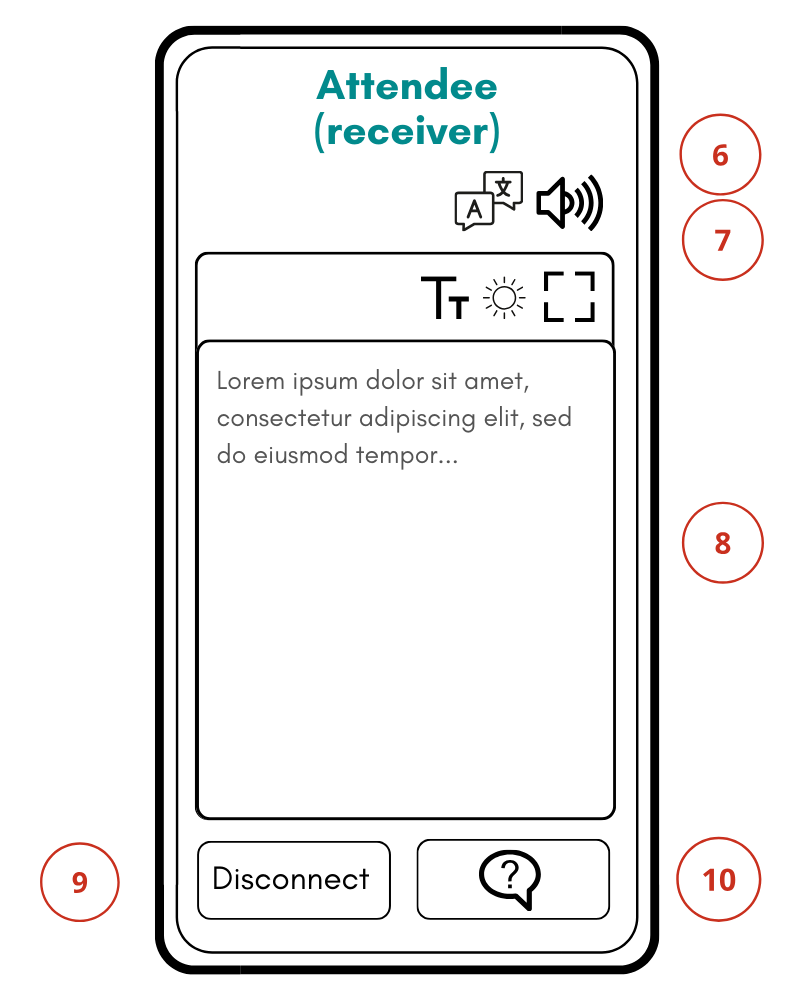
- Language selection: Default is your browser's language; change anytime using icon (6)
2. Reading and Listening
Text Display:
- Translation appears as live text in center of screen
- Adjust font size and brightness
- Dark mode available to save battery
Audio Output:
- By default, audio enabled (synthetic voice reads translation)
- Mute/unmute anytime using icon (8)
- Check device volume
- Ensure audio not muted (8)
- Close other apps using sound
3. Asking Questions (if enabled)
- Tap "Questions" button (7) at bottom
- Type question in language you're receiving translation
- Speaker receives it translated into their language
- Speaker decides when to answer
4. Exiting
Tap "Disconnect" (9) to exit translation.
Nubart Translate - Instructions
Critical Success Factor
Audio Quality Determines Everything
Nubart TRANSLATE requires:
- Clean, isolated speech signal
- No background voices
- No feedback from translated audio
- Consistent volume levels with no distortion
- Clear voice signal without bass enhancement (which degrades AI transcription)
Internet Requirements
Network Compatibility:
The speaker's device must support WebSocket Secure connections (WSS protocol). Most modern networks allow this, but some corporate or public Wi-Fi networks may block these connections.
Bandwidth Requirements:
For listeners (download): each listener requires approximately 40 to 128 kbit/s of download bandwidth for audio streaming, depending on the language.
For speakers (upload): The speaker's device requires a stable upload connection of approx. 256 kbit/s per active speaker.
Firewall Allowlisting:
For restrictive corporate networks, ask IT to allowlist:
- Domains: nub.art, www.nub.art, digitaltangible.s3.eu-west-1.amazonaws.com, digitaltangible-customer.s3.eu-west-1.amazonaws.com, digitaltangible-temp.s3.eu-west-1.amazonaws.com, digitaltangible-user.s3.eu-west-1.amazonaws.com. Edge IPs are dynamic, allowlist by domain name, not IP address.
- Ports: TCP 443 (HTTPS/WSS, all traffic) and TCP 80 (redirect only). No UDP, no CDN.
Minimum Bandwidth (Download Speed):
| Event size | Required speed |
|---|---|
| Small (up to 50 users) | 25 Mbps |
| Medium (50–200 users) | 100 Mbps |
| Large (over 200 users) | 500 Mbps |
Ensure that your router can handle multiple simultaneous device connections.
How Nubart Optimizes Translation for Your Event
During purchase, we request:
- Context documents (event agendas, technical papers, patents, manuals)
- Speaker names
- Which language(s) will be spoken during the event (not listener translation languages)
- Any written materials related to the event subject
What we do with these materials:
- AI-powered extraction: We use AI to analyze documents and extract a 3-page summary containing the most relevant technical terminology in natural language context
- Multi-language preparation: We translate this context summary into your event's speakers' languages
- Context feeding: The AI receives this contextual information (similar to briefing a human interpreter)
- Internal testing: We read documents aloud through Nubart TRANSLATE to identify terms the AI doesn't recognize, then address them specifically
Audio Setup Requirements
Acoustic Isolation Required
The problem: Nubart TRANSLATE is highly sensitive to capture speech in large/noisy rooms. This means it captures ALL audio—including translated audio from listener devices.
We don't use a noise gate (would cut off speech and reduce accuracy).
Solution: Achieve ONE of these:
- ✅ All listeners use headphones/earphones
- ✅ Speaker and listeners in different locations
- ✅ Reduce mic sensitivity/room volume so mic captures speaker clearly but not room/listener devices
Speaker Device
Recommended:
- Laptop – Best stability and control
- Recent smartphone – Fine if decent processor
Before event: Restart speaker device to close background processes.
Audio Input Options
Best to Worst Quality:
1️⃣ Professional Event Routing (STRONGLY RECOMMENDED)
- Line/Aux output from PA/mixing console into speaker device, OR
2️⃣ Quality External Microphone
- Headset, lavalier, or handheld mic
- Provides hands-free, consistent audio
3️⃣ Built-in Device Microphone
- Only acceptable in quiet environments
- Vulnerable to noise, echo, room acoustics
- Not recommended for important events
Your two main diagnostic tools:
1️⃣ Spectrum Display (1)
- Shows audio signal like HiFi equipment
- High tones right, bass tones left
- Spectrum bars move when mic receives sound
Diagnostic Use:
| Symptom | Cause |
|---|---|
| No movement when speaking | Mic not active or wrong device |
| Very small movement | Signal too weak, increase volume |
| Red bars across all frequencies | Overall signal too strong, reduce input volume |
| Red bars only in specific frequencies | Use equalizer to reduce those frequencies (lowering overall volume may weaken signal for transcription) |
2️⃣ Audio Quality Indicator (5)
🟢 Green (80%+) - Good quality
🟡 Yellow (60-80%) - Usable, improve if possible
🔴 Red (below 60%) - Poor quality
If indicator shows red:
- First: Verify correct spoken language selected
- Check microphone is active and selected
- Reduce background noise and echo
- Ensure only speaker's voice reaches mic
- Adjust microphone position/sensitivity
Mandatory Pre-Event Testing
Why Testing Is Critical
5 minutes of testing prevents hours of poor translation.
Event organizers often skip testing because:
- PA system sounds perfect
- Recording quality is excellent
- They assume AI "just works"
Testing reveals:
- Actual audio quality reaching our system
- Echo or feedback issues
- Background noise problems
- Microphone selection/volume issues
- Network connectivity problems
The Test Procedure
Perform this 5-minute test at actual venue, under real event conditions, before your event begins.
Step-by-Step:
- Log in as speaker on your main device (laptop/smartphone)
- Use second device to scan event QR code
- On second device:
- Select same language as speaker
- Mute audio output (8) to prevent feedback
- Say 4-5 test sentences in presentation language
- Check TWO indicators simultaneously:
Indicator A: Audio Quality (5)
On speaker device:
🟢 GREEN - Perfect! Continue.
🟡 YELLOW - Improve if possible
🔴 RED - Must improve
Must show GREEN while speaking.
Indicator B: Transcription Accuracy
On second device (listener view):
Read the live transcript in your language. Compare spoken words with displayed text.
If Test Results Are Poor
| Problem | Solution |
|---|---|
| Red or yellow quality indicator |
|
| Transcription below 90% |
|
| Red bars in spectrum display |
|
| Spectrum display (1) barely moves |
|
| Wrong input device |
|
Test Success Criteria
You're ready to go live when:
- ✅ Audio Quality Indicator (5) consistently shows GREEN (80%+)
- ✅ Transcription accuracy is 90-95%+
- ✅ Spectrum display (1) shows good signal without red bars
- ✅ No feedback loop (if both devices are in same room)
Common Testing Discoveries
Issue 1: Background Conversations
Symptom: Transcription includes words speaker didn't say
Cause: Microphone picking up nearby conversations
Solution: Use close-proximity mic (lavalier/headset), position speaker away from audience
Issue 2: Feedback Loop
Symptom: Translation repeats or stutters
Cause: Speaker's microphone hearing translated audio from listener devices
Solution: All listeners use headphones, or increase distance between devices
Issue 3: Incorrect Language
Symptom: Red quality indicator, nonsense transcription
Cause: Wrong spoken language selected (#1 cause of test failures)
Solution: Click "Change language" (4) and select correct language
Issue 4: Volume Too Low/High
Symptom: Spectrum display (1) barely moves OR shows red bars
Cause: Input volume incorrectly set
Solution: Adjust input volume in OS/browser settings, or adjust physical distance from mic
Pro Testing Tips
- Test with real speaker: Have actual presenter perform test, not technician
- Test at actual volume: Use same speaking volume as during event
- Test with audience present: If possible, test with some attendees to verify acoustic isolation
- Test all rooms: For multi-room events, test each room separately
- Document settings: Note working mic settings, volume levels, and positioning
- Test questions feature (3): If enabled, verify speaker can receive and see questions
When to Test
Ideal timing:
- 1-2 days before: Initial tech rehearsal
- Morning of event: Final verification in actual conditions
- 15 minutes before start: Quick recheck
Troubleshooting
Problem: "There is no translation"
Checks:
- ✅ Has speaker clicked "Unmute"?
- ✅ Does spectrum display show visible signal when speaker talks?
- ✅ Are both speaker and listener devices connected to internet?
If spectrum display shows very weak signal:
- Input volume too low
- Increase volume or move closer to microphone
Problem: "Translation doesn't make sense"
Immediate checks:
- Audio Quality Indicator (5): Is it green? If yellow/red, improve audio quality
- Correct spoken language? If not, use "Change language" (4)
- Microphone picking up other sounds?
- Use headphones for all listeners
- Lower listener device volumes
- Increase distance between devices
Verification:
Run the audio input test (see Testing section) to check transcription accuracy.
Problem: "Audio Quality Indicator (5) shows red"
Two Most Common Causes:
1️⃣ Wrong Spoken Language Selected (50%+ of cases)
Solution: Click "Change language" (4) and select correct language
2️⃣ Poor Audio Input Reaching System
| Symptom | Solution |
|---|---|
| Spectrum display (1) shows weak/no signal | Increase input volume |
| Spectrum display (1) shows red bars | Decrease input volume |
| Background noise/echo | Use better microphone, reduce room noise |
| Other voices being captured | Ensure only speaker's voice reaches mic |
Problem: "Translation appears as text but I can't hear it"
Solutions:
- Increase volume on listener device
- Verify audio output enabled (8)
- Close other apps using audio
- Restart browser/app
- Check device is not in silent/do-not-disturb mode
Problem: "Translation repeats sentences"
Cause:
Speaker's microphone is hearing the translated audio output.
Common Scenario:
During testing, one person's devices are too close together.
Solutions:
- Mute audio on listener device
- Use headphones
- Move devices farther apart
- Reduce listener device volume
Problem: "Translation is very delayed"
Normal Delay:
Up to 2 seconds after speaker finishes a sentence is normal (similar to human interpreters).
If delay is significantly longer:
- Check internet connection on both speaker and listener devices
- Verify bandwidth is sufficient for event size
- Close unnecessary browser tabs/apps
- Move closer to Wi-Fi router
Problem: "Translation takes too long to begin"
Speaker should NOT:
- ❌ Wait for translation to catch up
- ❌ Insert artificial pauses
- ❌ Speak slower than natural pace
Speaker SHOULD:
- ✅ Continue speaking naturally
- ✅ System will catch up automatically
Problem: "Questions not appearing for speaker"
Checks:
- Is questions feature enabled? (Contact us if unsure)
- Has listener actually submitted a question?
- Is speaker looking at "Questions" (3) for red notification?
- Has speaker clicked the Questions button to open list?
If using separate device for questions:
- Verify device is logged in with correct account
- Ensure device is connected to internet
- Check microphone on this device is MUTED
Device Issues
Symptom: Browser/app crashes or freezes
Solutions:
- Restart browser/app
- Clear browser cache and cookies
- Update browser to latest version
- Try different browser (Chrome, Firefox, Safari)
- Restart device
- Close other apps consuming resources
Microphone Issues
Symptom: No audio input detected
Checks:
- Is microphone physically connected?
- Is correct input device selected in OS settings?
- Is correct input device selected in browser settings?
- Is microphone muted in OS/browser?
- Does microphone need batteries/charging?
- Is another app using the microphone?
- Has browser been granted microphone permissions?
Testing Microphone:
- Close Nubart TRANSLATE
- Test mic in OS settings (Windows Sound Settings, Mac System Preferences, etc.)
- Test mic in browser (Chrome > Settings > Privacy and Security > Microphone)
- If working in tests, reopen Nubart TRANSLATE
When to Contact Support
Contact us if:
- Testing reveals persistent red quality indicator (5) despite following all troubleshooting steps
- You want to change the colours or logo of the listener interface
- You need help with multi-room event setup
- You need help with videoconference integration
- Questions feature not working
- Billing/usage questions
Contact Information:
Email: info@nubart.eu
Response Times:
- Business hours (9:00-18:00 CET/CEST, Mon-Fri): Within 24 hours
- Emergency during confirmed events: Contact info provided after purchase
When Contacting Support, Include:
- Event date and time
- Number of expected attendees
- Description of issue
- Audio quality indicator (5) reading
- Screenshot of interface (if possible)
- Steps already taken to troubleshoot
Special Scenarios
Videoconference Translation
For remote speakers, route Zoom/Meet audio from device A to Nubart on device B via a TRRS cable. Test this setup days in advance. For technical details and setup instructions, please refer to the FAQ on our website.
Multi-Room Events
Before Event:
Inform us of:
- Number of rooms
- Room names (e.g., "Room 1," "Venus Room")
- If rooms cover different topics: Brief description for each (helps AI context)
Speaker Account Setup (Multi-Room)
Each room requires separate speaker account with different email:
- Log in to www.nub.art/customer/login
- Go to "Employees" tab
- Click "Invite employee" for each room
- Enter name and email for each
- IMPORTANT: Select "Guide and Translate" role
- System sends invitation to each email
Note: You need 'admin' permissions to access Employees tab. Contact us if you don't see this option.
On Event Day:
Speakers:
- Log in and see list of all rooms
- Select correct room
Listeners:
- Scan QR code
- See list of all rooms
- Select room they're attending
QR Code Strategy:
- Single QR for all rooms: Simplifies logistics (recommended)
- Separate QR per room: Only if rooms very far apart
Speaker Device Out of Reach
Scenario: Device sending audio is not where speaker can see it
Example: Laptop connected to sound system is in a booth or back-of-room, but speaker is on stage.
Problem:
Speaker can't see incoming audience questions.
Solution: Create Second "Guide and Translate" Account
Setup steps:
- Go to "Employees" tab in Customer Area
- Click "Invite employee"
- Assign a name (e.g., "Speaker Monitor - Room A") and email
- Complete invitation process to activate account
- Log in to new account on second device (tablet/phone)
- Open the Questions panel (3) so questions are visible as they arrive
- Place this device in speaker's view (on podium/table)
What speaker sees on second device:
- Incoming audience questions (translated into speaker's language)
- Questions appear automatically as listeners submit them
What speaker can do:
- Read questions as they arrive (no touching required)
- Remove questions already answered (click X on question)
Primary device responsibilities (sound technician in booth):
- Handles audio transmission
- Monitors Audio Quality Indicator (keep green)
- Adjusts audio settings if quality drops
Panel Discussions / Multiple Speakers
Option 1: One speaker account (simplest)
- One person controls "Unmute/Mute" (2)
- All panelists share microphone
- Works if all speak same language
Option 2: Multiple speaker accounts
- Each panelist has own account
- Each unmutes (2) when their turn
- Allows different source languages
- Requires coordination between speakers
Multi-Day Conferences
Day 1 Recommendations:
- Arrive 1 hour early for thorough testing
- Test each room/speaker separately
- Document working settings for each room
- Identify any problematic speakers/locations
Day 2+ Recommendations:
- Quick 15-minute retest before start
- Verify no overnight changes to audio setup
- Check different technicians haven't altered settings
Speaker Rotation:
- Brief each new speaker on "Unmute" (2) and "Change language" (4) buttons
- Emphasize importance of clicking "Mute" when finished
- Have technical operator on standby for first-time speakers
International Events / Multiple Languages
If speakers present in different languages:
Each speaker MUST:
- Click "Change language" (4) before starting
- Select their spoken language
- Verify green quality indicator (5)
Pre-Event Speaker Briefing:
Create a simple one-page guide for speakers covering:
- How to log in
- How to select their spoken language
- How to click Unmute (2)
- How to click Mute when finished
- Where to look for audience questions
Consider providing this in multiple languages for international speakers.
Projecting Translation on Screen
Scenario: Display translated text on venue screen or monitor
Setup steps:
- Open your event's QR code link in the browser of the projection device (laptop/tablet connected to projector)
- Select the target language you want to display
- Click the fullscreen button (10) to maximize the translation text
Multiple languages: If you need to project multiple translations simultaneously, open the QR code link in separate browser windows/tabs, each set to a different language.
What to Expect from AI Translation
Professional Excellence, Not Perfection
Nubart TRANSLATE provides professional-grade simultaneous interpretation comparable to experienced human interpreters (85-95% accuracy range).
- Mathematical certainty (language is subjective)
- Perfect like document translation (DeepL/ChatGPT)
- Infinitely customizable through glossaries
Simultaneous ≠ Document Translation
| Document Translation (DeepL, ChatGPT) |
Simultaneous Interpretation (Nubart TRANSLATE) |
|---|---|
| Complete texts, knows sentence endings | Live, doesn't know how sentence continues |
| Perfect text input | Must transcribe speech first (accents, noise) |
| No time pressure | Immediate delivery required |
AI vs. Human Interpreters
| AI Advantages | AI Challenges |
|---|---|
| ✅ Superhuman memory (terminology, figures) | ❌ Background voice separation |
| ✅ Never fatigued | ❌ Too precise (replicates errors) |
| ✅ Instant availability | ❌ Punctuation placement |
| ✅ Unlimited scalability | ❌ Doesn't smooth speech |
| ✅ Fraction of cost | ❌ Language mixing (code-switching) |
| ❌ Foreign name pronunciation (TTS) |
Three Common Limitations
1. Language Mixing (Code-Switching)
Scenario: German speaker uses English terms ("customer journey," "machine learning").
Problem: AI set to German doesn't know if these are loan words (keep in English) or need translation.
Solution: If you know speakers will use specific English terms, mention these in your context documents. Brief speakers to stay consistent; use "Change language" button for full sections.
2. TTS Pronunciation of Foreign Names
Example: German "Fraunhofer" → Text ✅ correct → English TTS voice ❌ "Frown-hoffer"
May affect: Company names (BMW, Siemens), people (François, Müller), places (München, København)
Why: TTS uses target language phonetic rules, doesn't auto-switch for foreign names.
Solution: Inform listeners text is accurate; recommend text-only mode for events with many foreign names.
3. External Conditions Impact Quality
| Factor | Impact |
|---|---|
| Audio clarity/volume | 🔴 High |
| Environmental noise | 🔴 High |
| Room acoustics | 🔴 High |
| Speaker pace/articulation | 🟡 Medium |
| Internet quality | 🟡 Medium |
| Speaker accent | 🟡 Low-Med |
When AI Works Best
- ✅ Technical presentations (specialized vocabulary)
- ✅ Business conferences (standard terminology)
- ✅ Academic lectures (well-defined fields)
- ✅ Product demos (clear structure)
- ✅ Panel discussions (prepared speakers)
Challenging Scenarios
- ❌ Highly colloquial language (idioms/slang)
- ❌ Rapid-fire dialogue (interruptions)
- ❌ Poetry or wordplay
- ❌ Poor audio (echo, noise, low volume)
- ❌ Language mixing within sentences
Note: Human interpreters also struggle with these—not AI-specific.
Setting Attendee Expectations
Communicate in pre-event materials:
- ✅ "AI-powered real-time translation available"
- ✅ "Quality comparable to professional interpreters"
- ✅ "Bring headphones for best experience"
- ✅ "35+ languages available"
Don't promise:
- ❌ "100% accurate translation"
- ❌ "Perfect voice reproduction"
- ❌ "Zero delay"
The Revolution
Technology has democratized professional interpretation. Events of any size can offer multilingual access at a fraction of traditional cost.
AI improves rapidly:
- Better accent recognition
- Improved contextual understanding
- More natural voice synthesis
- Faster processing, lower latency
Final Checklist & Contact
Final Checklist Before Your Event
✅ 48-72 Hours Before:
- [ ] Internet bandwidth verified for expected attendance
- [ ] Network supports WebSocket (WSS) connections
- [ ] Speaker accounts created for each room (if multi-room)
- [ ] QR codes printed and distributed
- [ ] Professional audio routing arranged (Line/Aux from PA, or Y-splitter)
- [ ] Speakers briefed on basic operation
✅ On-Site Before Event:
- [ ] Speakers' devices restarted
- [ ] Audio input test completed
- [ ] Audio Quality Indicator shows green when speaking
- [ ] Transcription accuracy verified at 90%+
- [ ] Spectrum display shows good signal without red bars
- [ ] Acoustic isolation confirmed (listeners using headphones, or proper separation)
- [ ] Questions feature tested (if enabled)
- [ ] Multi-room selection tested (if applicable)
- [ ] Backup audio equipment available
✅ During Event:
- [ ] Monitor Audio Quality Indicator—must stay green
- [ ] Speaker uses "Change language" if switching languages
- [ ] Timer running (red) when unmuted, stopped (black) when muted
- [ ] Technical operator monitoring for issues
- [ ] Backup contact for support available
Common Mistakes to Avoid
- Skipping pre-event testing
→ Test at venue under real conditions - Using built-in device microphone
→ Use professional audio routing or external mic - Forgetting to change spoken language
→ Always use "Change language" button (4) - Not using headphones for listeners
→ Causes feedback loops and poor audio - Submitting 100+ term glossary
→ Provide good written context information - Ignoring Audio Quality Indicator
→ Must stay green throughout event - Expecting mathematical perfection from AI
→ AI provides professional excellence, not perfection - Not briefing speakers on basic operation
→ Create simple one-page guide for speakers
Contact & Support
Email:
info@nubart.eu
Response Times:
- Business hours (9:00-18:00 CET/CEST, Monday-Friday):
Within 24 hours - Emergency support during confirmed events:
Contact information provided after purchase
When to Contact Support:
- Testing reveals persistent issues despite troubleshooting
- Multi-room event setup assistance
- Videoconference integration help
- Customization requests
- Billing or usage questions
Include in Support Requests:
- Event date and time
- Expected number of attendees
- Description of issue
- Audio quality indicator reading (if applicable)
- Screenshots (if possible)
- Troubleshooting steps already taken
Additional Resources
Online:
- Website: www.nubart.eu
- Product page: www.nubart.eu/ai-simultaneous-interpretation/
- Terms & Conditions: Available on website
- Privacy Policy: Available on website
Billing & Usage:
- Customer area: www.nub.art/customer/login
- View usage reports
- Manage speaker accounts
We're Here to Help
Our goal is to make your multilingual event a success. We've worked hard to create a system that's both powerful and easy to use.
Remember:
- Audio quality is the foundation of good translation
- 5 minutes of testing saves hours of trouble
- AI provides professional-grade results at a fraction of traditional cost
- We're available to support you throughout your event
Nubart TRANSLATE
Real-time AI-powered interpretation for events
www.nubart.eu | info@nubart.eu