Nubart Live - Instructions for the guide
Before you start (1 minute)
Before the group arrives, just make sure you have these two things on your phone
- This link: www.nub.art/customer/login
- Your login details
- Recommended: A headset or a USB-microphone, especially if you plan to use the translation add-on. Try to find a unidirectional microphone, especially if the environment is noisy
Step 1 – Log in and open the group
- Open the link and log in.
- Once you're in, tap "Open group".
You've now created a group.
Nothing is happening yet — that's normal.
Step 2 – Give out the cards
Make sure each participant has one card.
Now ask the group to:
- Scan the QR code on their card with their smartphone.
If someone doesn't know how to scan a QR code, no problem:
- Ask them to go to nub.art
- Use the built-in scanner there
- (or they can type in the short code printed on the card)
Step 3 – Scan the cards (your part)
Now it's your turn.
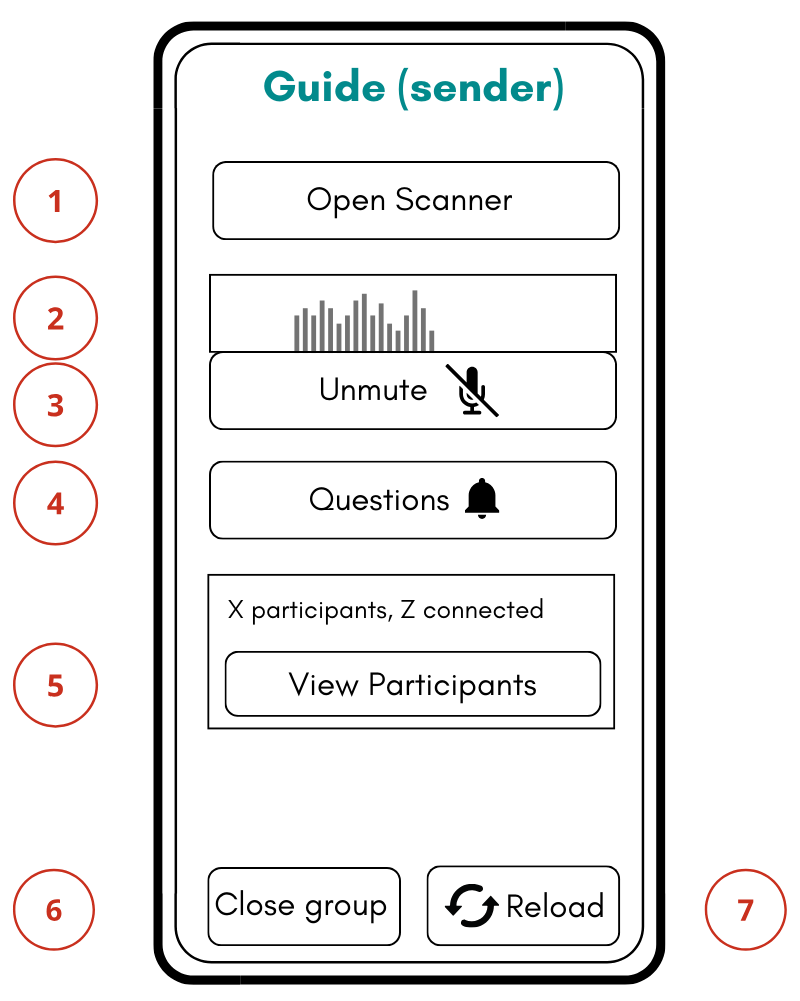
- Tap "Open scanner" (1) on your screen.
- Quickly scan each participant's card.
Tip: If you prefer, you can even scan the cards before handing them out.
Step 4 – Check that everyone is connected
Tap "View participants" (6). You'll see a list:
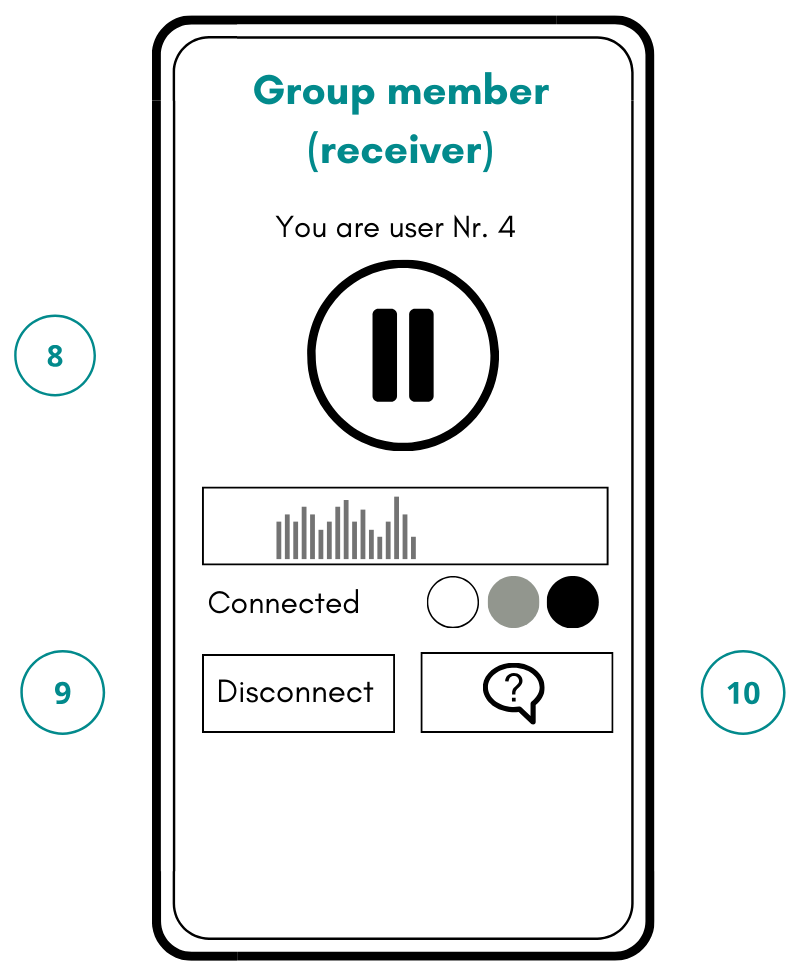
- Each participant has a number.
- Next to each number, you'll see a small "traffic light".
Green means: all good.
If someone has a problem later, this number helps you identify them.
Guide (Speaker) Interface
Participant (Listener) Interface
Step 5 – Start talking
- Tap "Unmute" (3).
- Start speaking into your headset microphone.
You'll see a moving bar (the spectrum display (2)).
That simply means: your voice is being transmitted.
If you see movement, everything is working.
If you don't see movement:
- Make sure no other app on your phone is using the microphone.
What visitors can do
Tell the group:
- They can turn the sound on or off at any time using Mute/Unmute (9).
- They can send you a question using the question button (8).
If someone sends a question (8):
- You'll see a red dot on button (4). Tap it to read the question.
Step 6 - Ending the tour
Tap "Close group" (7).
If you plan another tour with the same group, you can also leave it open. This way you don't have to scan all cards again.
TROUBLESHOOTING
If the sound stops or a connection drops:
- Tap "Reload" (8).
- This reconnects everyone at once. The group does not need to scan the cards again.
If someone accidentally closes the browser:
- They just scan their card again. That's all.
If someone sees movement on the spectrum display (2) but hears nothing:
- Ask them to turn up their phone volume.
- Ask them to close any app that might be playing sound.
Nubart LIVE – AI Live Translation add-on (optional)
Important:
These instructions apply only if you choose to activate the AI Live Translation add-on when opening a group.
If you didn't request the add-on from us or you don't activate it, Nubart LIVE works exactly as described in the main instructions in page 1.
Step A – Activate the translation add-on
When you open a group, you'll be asked:
Enable Translation?
Tap Yes if you want live translation. Keep in mind that this is a paid feature and that we invoice based on usage time.
Tap No if you want a normal tour without translation.
Step B – Select your speaking language
Select the language you will be speaking during the tour. You will be able to change it if you decide to speak another language during the tour.
Step C – During the tour (guide view)
While the translation add-on is active, you will see a square on your screen showing:
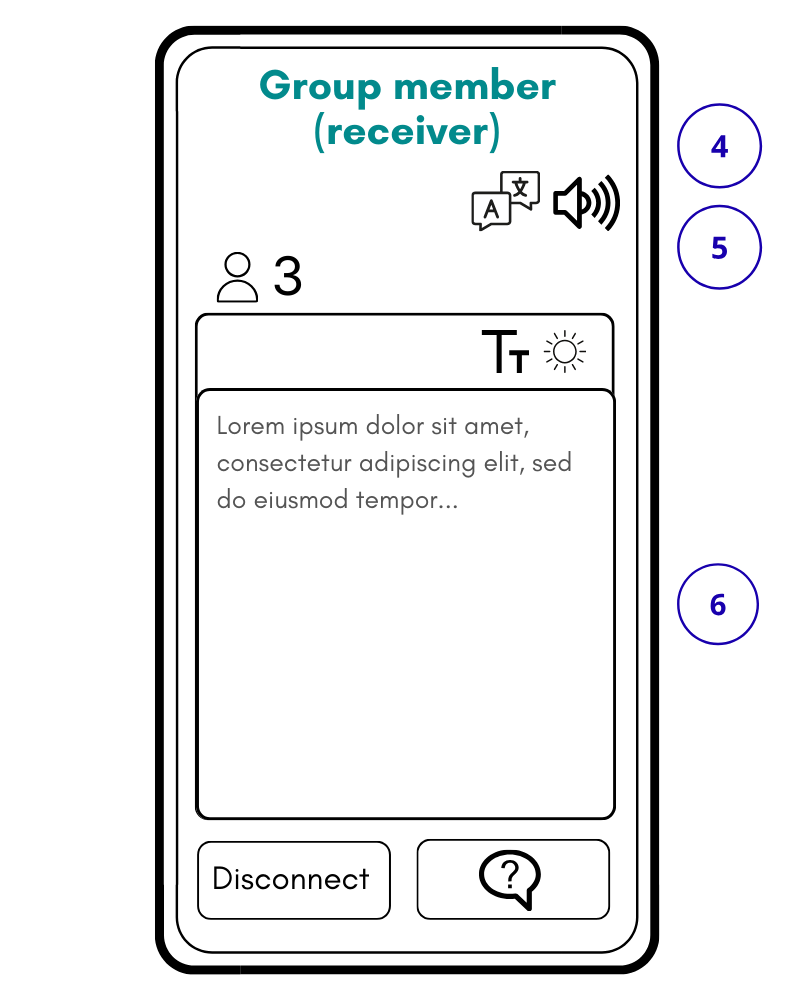
- the selected speaking language (1)
- your translation usage time (2)
About the usage timer
- While you are unmuted and speaking (1), the timer is red and counts time
- When you mute (1), the timer:
- turns black
- stops counting
- The timer also stops when you close the group
Audio quality check: Below the spectrum display, you'll see a circular indicator showing the quality of the audio input (4).
- Green = good audio quality
- Yellow or red = poor audio quality
If the indicator turns yellow or red while you are speaking:
- check that you selected the correct speaking language
- reduce background noise
- move closer to your microphone
Speak normally, not loud. A calm, steady voice works best.
Guide (Speaker) Interface with AI Translation

Participant (Listener) Interface with AI Translation
Step D – Muting and unmuting
Muting (3) (1) works exactly as in normal Nubart LIVE:
- When you mute, translation pauses
- When you unmute, translation continues
Step E – What visitors see (receiver view)
When the translation add-on is active, visitors will get a message explaining that your words will be translated to XX.
(XX is the language of their browser.)
They will also be informed that they can change the language at any time using the menu at the top of the screen.
If they choose the same language as you speak, they will listen directly to your voice and get a standard Nubart LIVE screen.
If they have chosen a different language than the one you speak, most of the screen will show:
- A live text translation of what you are saying (9)
Visitors can also:
- Change the language (5)
- Mute or unmute the text-to-speech voice (7)
Final reassurance
You don't need to explain the translation system to your visitors.
Just speak normally.
Everything else happens automatically.
Nubart LIVE – Media Library (optional)
Important:
These instructions apply only if we have created a media library for your tour.
If no media library has been set up, Nubart LIVE works exactly as described in the previous pages.
Step A – Open the media library
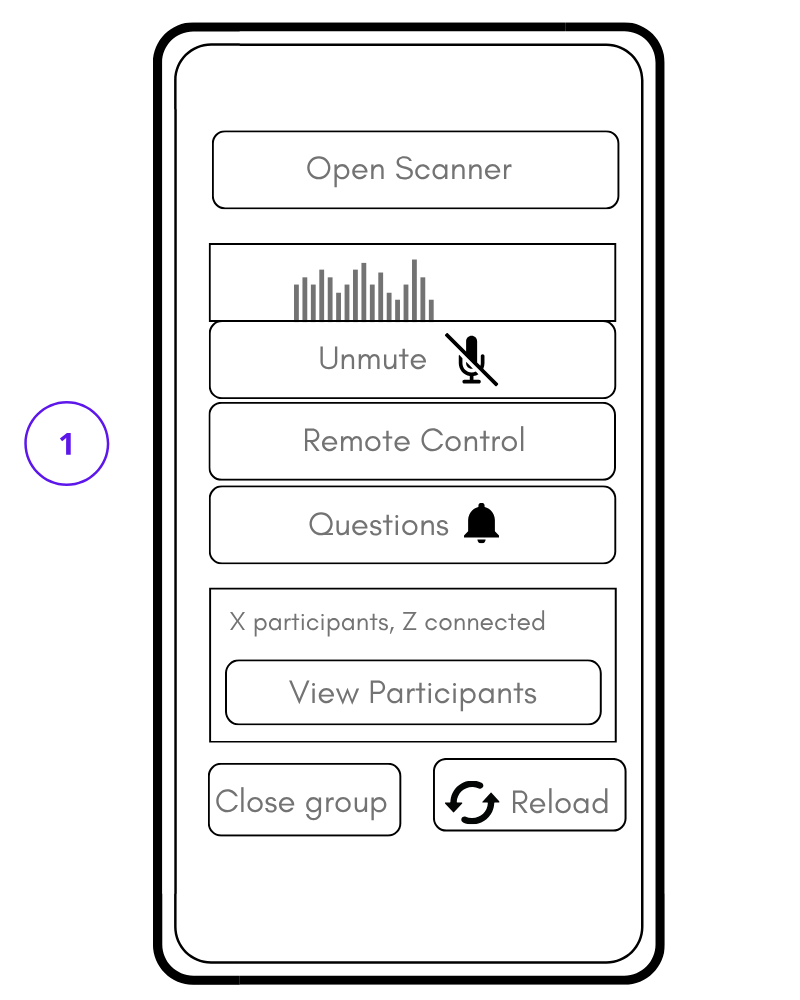
- Tap "Remote Control" (1).
A window opens on your screen showing all available content.
This window is only visible to you.
Step B – Send content to the group
- Tap the content you want to show.
The selected content appears immediately on all participants’ smartphones.
Participants do not need to click anything.
You can continue speaking while the content is displayed.
If you select another item, it replaces the previous one.
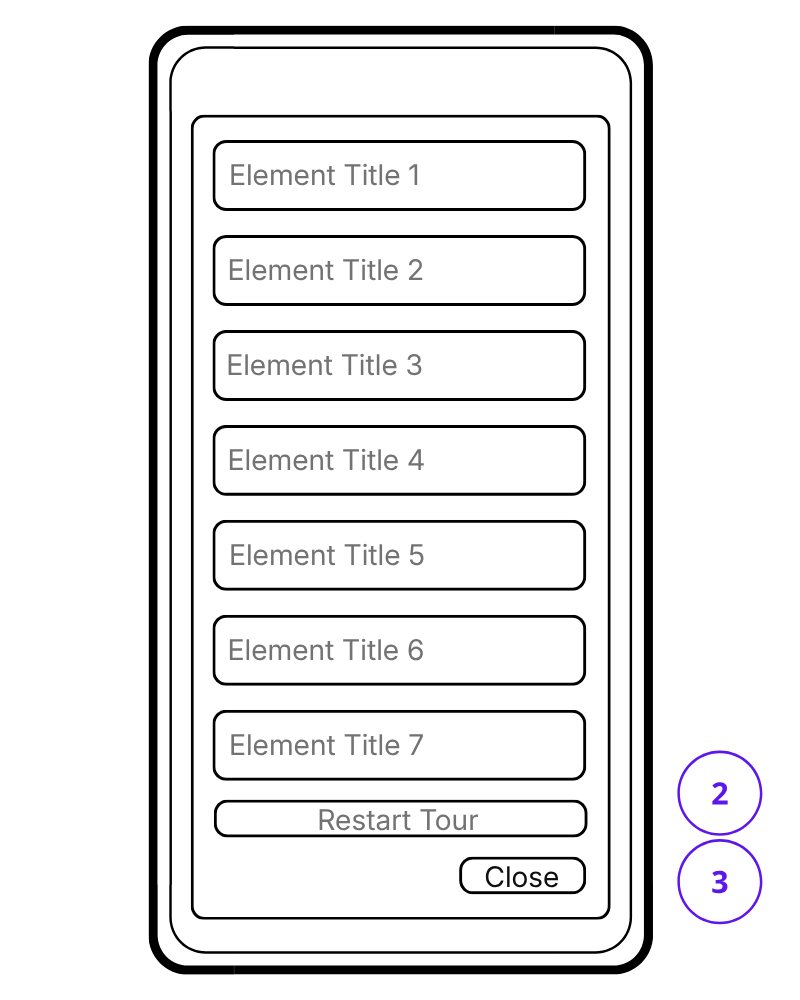
Button colors in the media library:
- Green: content has not been sent yet
- Grey: content has already been sent
- Red: content could not be delivered (e.g. due to poor connection)
If a button turns red, simply tap it again to resend the content.
To reset all buttons to green, tap "Restart tour" (2) (optional).
Step C – Close the media library
- Tap "Close" (3).
This closes the media library on your screen.
You can open it again at any time by tapping "Remote Control" (1).
What visitors experience
- The content appears automatically on their screen
- No interaction is required from them
- They can still mute/unmute and send questions as usual
You control what is shown and when it appears.
Good to know
- You can use the media library at any moment during the tour
- Only one content item is shown at a time
- The media library is prepared by our team based on your instructions
- You can have a different media library for each tour
Guide (Speaker) Interface with Media Library
Guide (Speaker) Interface with Remote Control Window
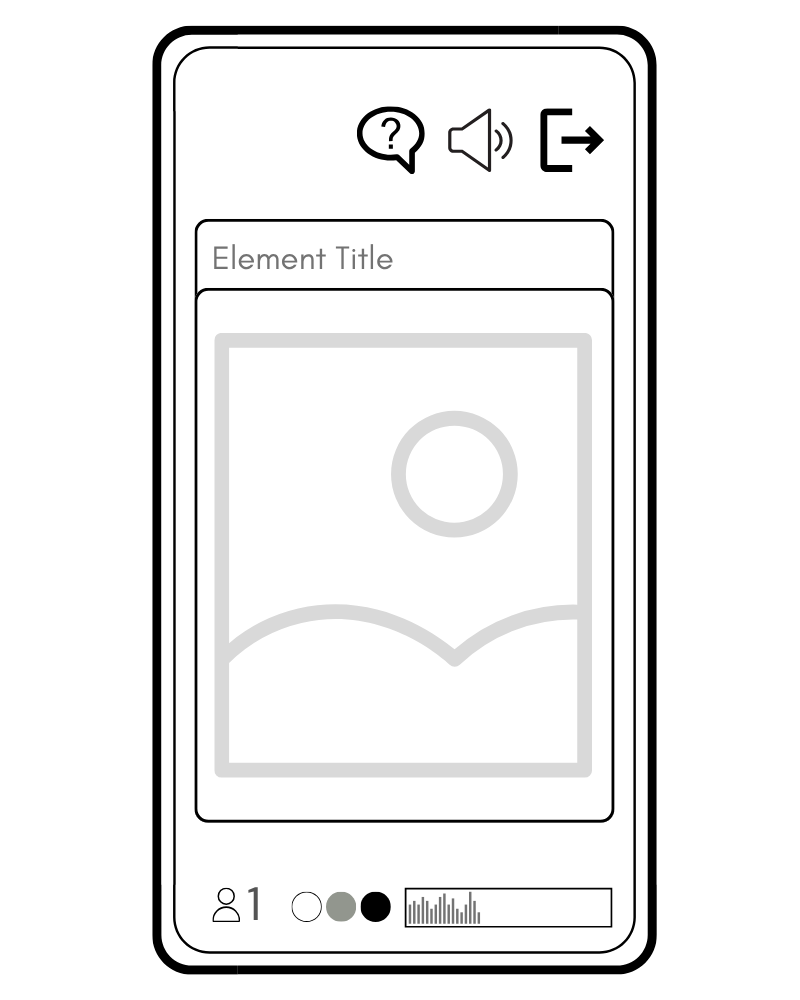
Participant Interface with media library
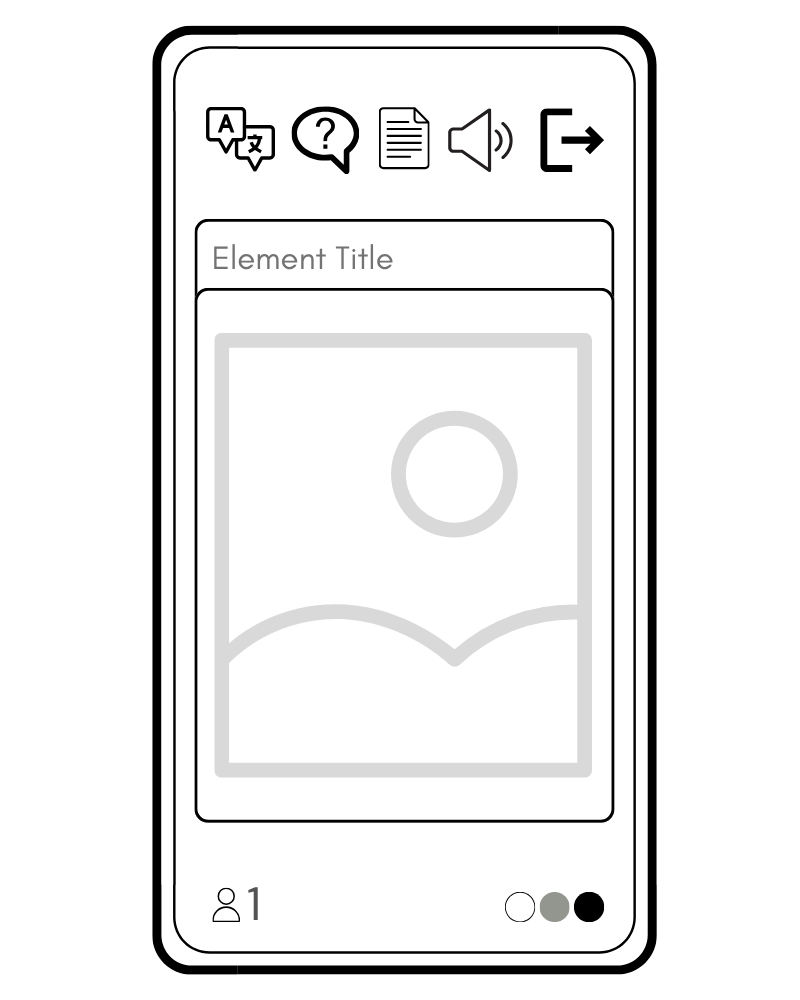
Participant Interface with media library and AI-translation
Nubart LIVE – Practical tips & troubleshooting (optional)
This page is not required reading. Most tours work perfectly without thinking about any of this.
However, guided tours often take place in noisy cities, factories or outdoor environments. The following tips will help ensure a smooth experience for you and your group.
Before your tour (recommended)
Test the system once beforehand.
If possible, test Nubart LIVE briefly before your tour. We provide free trial kits!
- Use the same smartphone you will use as a guide
- Test in conditions similar to the real tour
- Allow microphone access when your browser asks for it
A short test is usually enough to feel confident.
Check mobile coverage or Wi-Fi at your destination
Unlike traditional radio guide systems, Nubart LIVE uses the internet.
- Outdoors, this usually means mobile data
- Coverage can vary within a city
If the connection drops during the tour:
- simply move a few metres with your group
- the connection will recover automatically once coverage is available again
Use a modern smartphone for the guide
Even very old smartphones work well for participants.
However, the guide’s smartphone does a lot of work:
- audio processing
- live transmission
- optional live translation
For best results:
- use a relatively modern phone with a good processor
- make sure the battery is well charged before the tour
Audio setup in real tour conditions
Use a headset if possible
Urban environments or factories can be noisy.
Nubart LIVE works with the built-in microphone of your phone, but:
- a headset or external microphone improves sound quality
- if possible, use a unidirectional microphone, not omnidirectional
- it helps avoid background noise
This is especially useful in cities or in factories.
Avoid audio feedback if you use the translation add-on
The system is intentionally very sensitive.
For this reason:
- your microphone should not pick up voices other than your own
- translated speech from nearby devices should not be audible to your microphone
In practice:
- visitors should use headphones, or
- keep some distance between sending and receiving devices, or
- lower the volume of nearby phones
This is a physical audio issue, not a system malfunction.
During the tour
Latency
It is normal that:
- the voice of the guide or the translation starts a tiny bit after you begin speaking
You do not need to slow down or pause.
Just speak naturally — the system will follow.
If the latency between your real voice and the receiving voice is annoying for participants, lower your voice or suggest they keep more distance from you to prevent the "echo effect".
Multiple guides in the same group
Only one smartphone can transmit at a time.
If more than one guide is speaking during the tour, you can:
- pass the transmitting smartphone from hand to hand, or
- connect an external wired or wireless microphone to the phone
If you use a wireless microphone system:
- Use Firefox browser — it handles Bluetooth audio devices more reliably than Chrome or Safari
- Quick microphone test: Before the tour starts, move away from your phone, tap the microphone with a hard object, and watch the spectrum display (2). If it reacts immediately with a strong signal, the external microphone is recognized. If you only see a weak signal or none at all, the phone is using its built-in microphone instead. If so, check your browser and device settings.
Multi-day tours
Nubart cards are reusable but not transferable.
For trips lasting several days:
- ask participants to write their name on their card
- make sure everyone keeps the same card every day
If possible:
- don't close the group on the guide's smartphone
- this avoids rescanning all cards the next day
Battery management
Guided tours often involve long periods of phone usage.
Recommendations:
- bring a power bank or charger for longer tours
- reduce screen brightness as much as possible
- remember that Nubart LIVE keeps the screen active during use
When the tour is over:
- lock your screen to save battery
- remind participants to do the same
If something doesn't work as expected
There is no sound or no translation
Check:
- are you unmuted? (3) (1)
- does the spectrum display (2) show a clear signal?
- are you connected to the internet?
- is the correct speaking language selected? (1)
A very weak signal usually means the microphone input is too low.
If you're using a wireless microphone but the signal is weak:
- the phone may not have recognized the external microphone
- try using Firefox browser instead of Chrome or Safari
- test by tapping the microphone and watching the spectrum display (2)
The translation doesn't make sense
This is almost always due to poor audio input.
Quick check: Look at the audio quality indicator (4) while you are speaking.
- Green = audio is clear enough for translation
- Yellow or red = audio quality needs improvement
If the quality indicator is yellow or red:
- reduce background noise
- use a headset with a microphone close to your mouth
- check that the correct speaking language is selected
- if using a wireless microphone: tap it sharply and check if the level meter reacts strongly (see "Multiple guides" section)
The translation repeats sentences
This usually means that your microphone is picking up the translated output.
Solution:
- lower the volume of nearby devices
- use headphones
- increase the distance between phones
Visitors see text but hear nothing
Ask them to:
- increase their phone volume
- make sure audio is enabled (7)
- close any other app that might be using sound
Adding new guides (admin)
To add a new guide to your account:
- In your customer area, go to "Employees".
- Click "Invite employee".
- Fill in the name and email of the employee.
- Select the role:
- "Guide" if you don't want to give this guide access to the paid AI-translation add-on.
- "Speak and translate" if the AI-translation add-on should be available for this guide.
- Click "Submit".
Our system will now send an automatic invitation to this email address.
Tip: Let the new guide know an invitation email is on its way, and ask them to check their spam/junk folder if it doesn't arrive within a few minutes.
If you don't see an "Employees" tab in your customer area, this means you don't have admin permissions. Please contact the account owner or Nubart.